The Modern Favicon Checklist: Files, Sizes, HTML, and Web App Icons
Build a favicon package that works across browser tabs, bookmarks, Apple home screens, and installable web apps—without shipping a pile of unnecessary files.
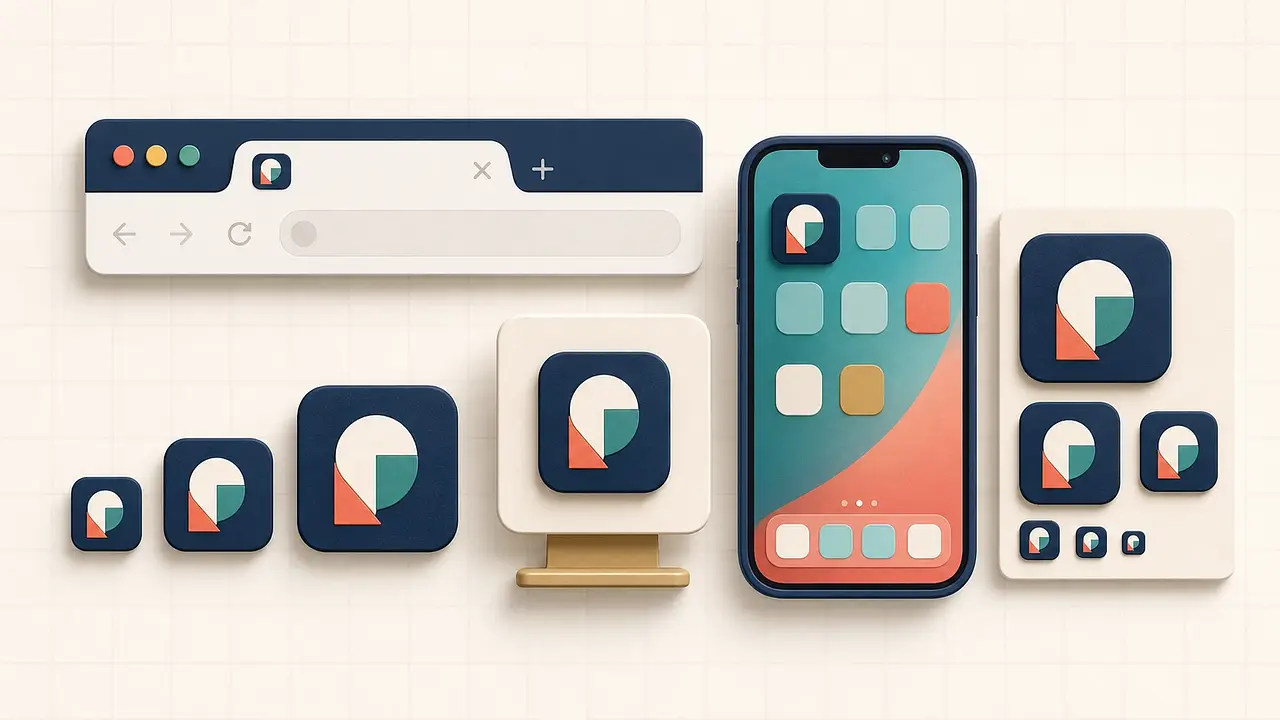
A favicon starts in a browser tab, but it rarely stays there. The same site may also need an icon for bookmarks, phone home screens, desktop shortcuts, and an installed web app. Those surfaces do not all read the same file, which is why a single 16-pixel image is no longer a complete favicon setup.
The good news is that you do not need dozens of nearly identical files. A small, deliberate package covers most sites. This checklist explains what each file does, which HTML belongs in your page, and when an installable web app needs extra work.
The short version: a practical favicon package
For a conventional website, start with these files:
favicon.icocontaining 16×16, 32×32, and 48×48 images for broad fallback and desktop support.favicon-16x16.pngfor compact browser UI.favicon-32x32.pngfor sharper tabs and bookmarks on higher-density displays.apple-touch-icon.pngat 180×180 for an iPhone or iPad home-screen shortcut.android-chrome-192x192.pngandandroid-chrome-512x512.pngfor a web app manifest.site.webmanifestto describe install icons and app colors.
The utilkit Favicon Generator creates that baseline package from one PNG, JPG, or WebP image. Use it when you want the standard files and a ready-to-paste HTML snippet without manually resizing the same artwork six times.
Start with artwork that survives at 16 pixels
A favicon is not a miniature poster. Fine text, thin outlines, gradients with little contrast, and detailed illustrations usually turn into a blur in a browser tab. Begin with a square source image at least 512×512 pixels, keep the main mark centered, and leave padding around it.
Test the design at its smallest size before exporting every file. If the 16×16 version is hard to recognize, simplify the mark rather than hoping a sharper source file will solve it. A bold silhouette or a few high-contrast shapes usually holds up better than a full wordmark.
Also check the icon against both light and dark browser chrome. A dark mark with a transparent background can disappear in a dark tab bar; a white mark can do the same in a light one. A solid background or a contrasting edge often makes the icon more dependable.
What each favicon file is for
favicon.ico: the durable fallback
ICO is an icon container, so one file can hold several raster sizes. Keeping 16×16, 32×32, and 48×48 versions inside it gives older browsers, desktop shortcuts, and software that automatically requests /favicon.ico a useful fallback.
You do not need the historical shortcut icon relationship. The current HTML standard defines rel="icon", and browsers can choose among declared icons using their type and size hints.
16×16 and 32×32 PNGs: explicit browser choices
Small PNG files let you declare exact raster sizes and inspect how each version looks. This matters when the best 16-pixel drawing is not simply a shrunken copy of the 32-pixel one. The HTML sizes value should describe pixels actually present in the file; it is a hint, not a request for the browser to create that size.
apple-touch-icon.png: the saved-site icon
An Apple touch icon represents the site when someone adds it to an iPhone or iPad home screen. A 180×180 PNG is a practical modern default. Apple can scale an available image for other devices, but the artwork still needs enough padding to survive the platform's rounded treatment. Apple's web application guidance documents the apple-touch-icon link relationship and device selection behavior.
192×192 and 512×512 PNGs: installable web-app icons
These larger icons belong in a web app manifest. They may appear on a home screen, in an operating-system app list, in a task switcher, or on an install prompt. Chromium's current manifest guidance calls for at least 192×192 and 512×512 icons, then scales them for other contexts.
They are not replacements for the small browser favicons. A 512-pixel app icon can contain more polish, but it should still use the same recognizable mark so the installed app feels connected to the open browser tab.
Put the favicon links in your HTML head
Place icon metadata inside the document's <head>. If the files live at the site root, a compact setup looks like this:
<link rel="icon" href="/favicon.ico">
<link rel="icon" type="image/png" sizes="32x32" href="/favicon-32x32.png">
<link rel="icon" type="image/png" sizes="16x16" href="/favicon-16x16.png">
<link rel="apple-touch-icon" href="/apple-touch-icon.png">
<link rel="manifest" href="/site.webmanifest">
<meta name="theme-color" content="#111827">
Root-relative paths keep these links working on nested pages. If you store the files elsewhere, change every path consistently. Confirm that each URL returns the image itself with a successful response rather than an HTML error page or redirect loop.
Add install icons to the web app manifest
A minimal icon-focused manifest can include the app name, colors, display mode, and two general-purpose icons:
{
  "name": "Example Website",
  "short_name": "Example",
  "icons": [
    {
      "src": "/android-chrome-192x192.png",
      "sizes": "192x192",
      "type": "image/png"
    },
    {
      "src": "/android-chrome-512x512.png",
      "sizes": "512x512",
      "type": "image/png"
    }
  ],
  "theme_color": "#111827",
  "background_color": "#111827",
  "display": "standalone"
}
The manifest icons member accepts a source, size, MIME type, and optional purpose for each image. Relative image paths are resolved from the manifest file's URL, not necessarily from the page that links to it.
A manifest alone does not guarantee that a site is installable. Installation also depends on browser and platform rules, and a real app manifest often needs fields such as id, start_url, and scope. Treat the generated manifest as a clean icon baseline, then add application behavior deliberately.
Know when you need a maskable icon
Some platforms crop installed icons into circles, squircles, or other shapes. A regular square icon may be shrunk onto a plain background to keep important artwork from being clipped. A maskable icon is designed with extra safe space so the operating system can fill the available shape more naturally.
If install quality matters, create a separate 512×512 image with the important mark contained well inside the center. Then add it to the manifest with "purpose": "maskable":
{
  "src": "/icon-maskable-512x512.png",
  "sizes": "512x512",
  "type": "image/png",
  "purpose": "maskable"
}
Do not label an edge-to-edge general icon as maskable without testing it. The web.dev manifest guide recommends dedicated maskable artwork and explains the safe area that must remain visible across platform masks.
Test the package instead of trusting the filenames
Favicons are aggressively cached, and different surfaces may select different files. Check the package in the contexts that matter to your site:
- Open the page in more than one browser and inspect the tab at normal zoom.
- Switch the operating system or browser between light and dark appearance.
- Bookmark the page and check the bookmark or history list.
- Request every icon URL directly and confirm its dimensions and content type.
- On an Apple device, add the site to the home screen and inspect the saved icon.
- For a web app, inspect the manifest in browser developer tools and test installation on a supported device.
- Test a maskable icon in several shapes before shipping it.
When a changed favicon refuses to appear, first verify the network response. Then try a private window or a fresh browser profile. Renaming the file and updating its HTML reference can be more reliable than repeatedly refreshing an icon URL that the browser has cached.
Common favicon mistakes
- Using a wordmark at 16×16: the letters become noise. Use the smallest recognizable part of the brand.
- Letting artwork touch every edge: home-screen masks can crop important details.
- Declaring sizes the file does not contain: browsers use the metadata to choose an asset, so inaccurate hints make selection less predictable.
- Forgetting the manifest link: the JSON file cannot help if no page points to it.
- Calling a regular icon maskable: the platform may crop the exact part you wanted people to recognize.
- Testing only the browser tab: bookmarks, phones, and installed apps reveal different problems.
- Changing files without accounting for caching: a correct deployment can still look stale locally.
Final checklist
- The source artwork is square, centered, simple, and readable at 16×16.
- The package includes ICO, 16×16 PNG, 32×32 PNG, and a 180×180 Apple touch icon.
- An installable web app has 192×192 and 512×512 manifest icons.
- The HTML head links to every file you intend browsers to use.
- The manifest uses correct image paths, sizes, and MIME types.
- A dedicated maskable icon is included when installed-app presentation matters.
- Every URL returns the expected file, and the result has been checked on real target surfaces.
For most sites, the baseline package takes only a few minutes to produce. Start with the Favicon Generator, upload the generated files, paste the HTML snippet, and then spend the remaining time testing the places where people will actually see the icon.